 Knowledge Base
Netvisor
Send invoices to Netvisor for accounting and financial management. Learn how to set up, configure, and use the integration.
🔗 What the Integration Does
Netvisor is a Finnish accounting and financial management platform. The Thril–Netvisor integration lets you send invoices from Thril to Netvisor, where they are booked and managed.
Key things to know:
- Invoices are sent manually: one at a time from the invoice detail view, or in bulk from the Invoices list
- The integration is configured at the company level and applies across all your venues
- Invoice statuses are synced automatically from Netvisor twice daily
- Customer data is synced to Netvisor when an invoice is sent, and kept in sync afterwards — any relevant profile update in Thril (name, email, phone, billing address) is pushed to Netvisor for a customer who already has an account there
- You can record payments and delete them directly from Thril
- You can create credit notes for sent invoices
- Company customers are automatically synced to Netvisor when their first invoice is sent
- Each invoice has an accounting date (kirjauspäivä) that controls which accounting period it posts to. It defaults to the last day of the latest reservation month on the invoice, but you can override it manually when creating or editing the invoice
⚙️ Configuring Netvisor
Before connecting Thril, several things must be set up in your Netvisor account. Use this section as a checklist.
Netvisor package
Thril charges nothing extra for the Netvisor integration. The integration needs API access in Netvisor, which comes with the Professional and Premium packages. If your package lacks it, upgrade in the Netvisor Store.
API credentials
Netvisor navigation: Company menu → API identifiers
Obtain your Customer ID and Customer Key. These are organisation-specific credentials that grant Thril access to your Netvisor account via the API.
Required API endpoint permissions
Netvisor navigation: Company menu → API resource access rights
In API resource access rights, add the integration or approve an existing partner. Select Thril / Sportribe Oy from the list and grant access. This activates the endpoints Thril needs, or prompts you to confirm them.
The following endpoints are included in the integration:
| Area | Endpoints |
|---|---|
| Customers | customerlist.nv, getcustomer.nv, customer.nv |
| Products | productlist.nv, product.nv |
| Cost objects | dimensionitem.nv, dimensionlist.nv |
| Sales invoices | salesinvoicelist.nv, getsalesinvoice.nv, salesinvoice.nv, deletesalesinvoice.nv, matchcreditnote.nv |
| Sales payments | salespayment.nv, deletesalespayment.nv, salespaymentlist.nv |
| Invoice status | updatesalesinvoicestatus.nv |
| Accounts | accountlist.nv |
Thril reads your chart of accounts through accountlist.nv to offer your real accounts in the Ledger accounts view and on individual items. Without it those fields fall back to a plain text box where you type the account number yourself.
Netvisor grants salespaymentlist.nv separately from the other sales payment endpoints. Thril needs it to read the payments recorded in Netvisor back onto the matching invoice. Without it, an invoice that Netvisor reports as paid is marked paid with a single lump sum, and the individual payments are not shown.
Cost object headers
Do this before you create the integration in Thril. Thril cannot create these headers itself.
Netvisor navigation: Financials → Settings → Management of cost objects (Taloushallinto → Asetukset → Laskentakohteiden hallinta)
Click Lisää uusi otsikko and create two headers, named exactly:
LajiToimipaikka
When you are done, the page looks like this:
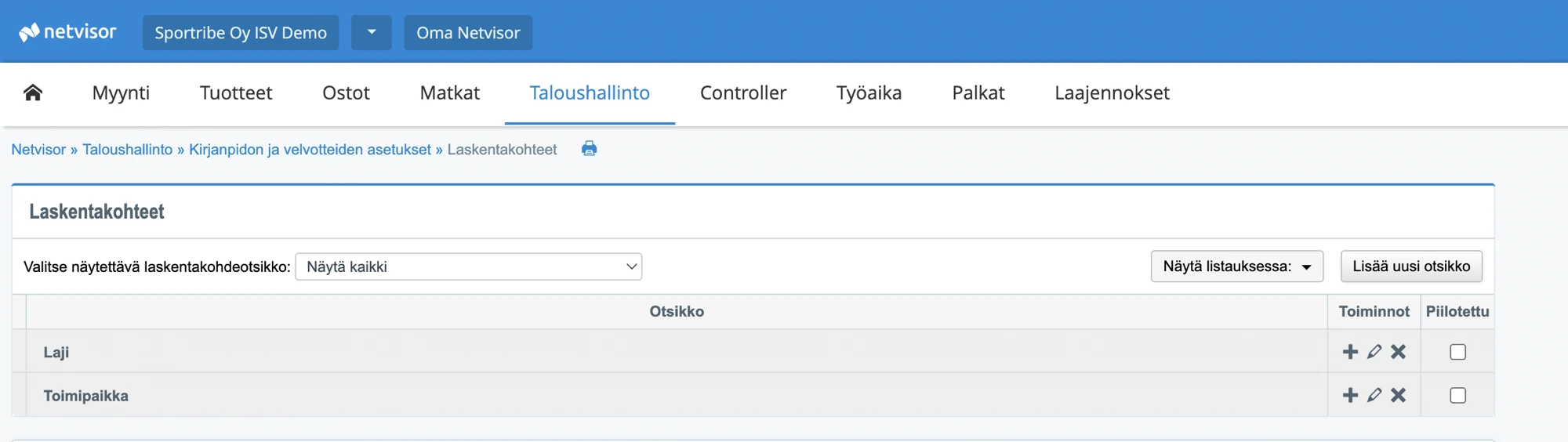
If the headers are missing when you click Create integration, Thril shows the error "Required cost object headers are missing in Netvisor". Create them and try again.
These two are the only headers Thril fills itself. Any other cost object header your Netvisor holds is yours to map onto Thril's products and items. See Cost objects.
Payment methods
Netvisor navigation: Sales → Basic data and settings → Payment methods → New payment method
Thril uses alternative (non-bank) payment methods when recording sales payments in Netvisor. The following payment methods must be created before payments can be recorded from Thril:
| Payment method | Description |
|---|---|
epassi | Epassi payments |
käteinen | Cash payments |
pankkikortti | Card payments |
If a payment method is missing in Netvisor, recording a payment with that method will fail.
Automatic invoice sending
Netvisor navigation: Sales → Invoicing settings and automatic sending (Myynti → Laskutuksen asetukset ja automaattilähetys)
Invoices Thril sends to Netvisor arrive there as sales invoices, but Netvisor decides how and when they are delivered to the customer. Enable automatic sending in this view if you want Netvisor to forward the invoices to your customers (as e-invoices, email, or print service) without you approving each one in Netvisor separately.
If automatic sending is left off, invoices stay in Netvisor waiting to be sent, and you have to send them from Netvisor manually. In Thril the invoice still shows as sent to Netvisor either way — Thril's status reflects the invoice's status in Netvisor, not whether Netvisor has delivered it to the customer.
Automatic sending is a Netvisor-side setting and applies to all invoices in your Netvisor organisation, not only those coming from Thril. If you are unsure how it affects your other invoicing, check with your accountant or Netvisor account manager first.
Business ID
Your company's Finnish Business ID (Y-tunnus) in Thril must match the organisation registered in Netvisor. It is used to identify your organisation in every API call.
Tip: If you need help enabling API endpoints, creating cost object headers, or configuring payment methods, contact your Netvisor account manager or Netvisor support.
🚀 Setting Up in Thril
Before you start, make sure the
LajiandToimipaikkaheaders exist in Netvisor. See Cost object headers.
- Navigate to Settings → System → Integrations → Netvisor
- Enter your Customer ID and Customer Key
- Set Status to Active
- Click Create integration
Thril will automatically initialize products and cost objects in Netvisor. Once complete, you're ready to start sending invoices.
Your company must have a valid Business ID configured in Thril. It is used as the Netvisor organisation identifier.
🧾 Sending Invoices to Netvisor
Sending a single invoice
- Open an invoice from the Invoices page
- Use the Send to Netvisor action
- Once sent, the invoice receives a Netvisor reference number
Your reference: the invoice form has a Your reference field when the invoice goes to Netvisor. Type whatever the customer asked to see on the invoice, a purchase order number or the name of the person who ordered, and it goes out as Viitteenne. Nothing fills it in for you. Left empty, the invoice goes without it. The invoice details show the reference when there is one, and a change to it is written to the invoice log.
Billing address required: Individual customers (Thril app users) must have a complete billing address on their profile before you can send their invoice to Netvisor. If the address is missing, the send will fail with an error. You can add or update the address in the customer's profile before retrying.
When a send fails: the send runs in the background, so its outcome lands after the invoice view has already accepted it. Until the invoice reaches Netvisor, the invoice's details show why the last send failed, in Netvisor's own words, and the same reason is on the Audit log tab. The invoice is released straight away, so fix the cause and send it again. When Netvisor refuses the VAT rate for a bookkeeping account, Thril lists the accounts the invoice's lines were sent with, in brackets after the reason: one of them is the account to fix. Nothing posted, since Netvisor refused the invoice whole.
Matching existing Netvisor customers: The first time you send an invoice for a Thril app user, Thril checks whether a customer with the same email already exists in Netvisor. If exactly one match is found, the invoice is linked to that existing customer instead of creating a duplicate, and any billing details missing from the customer's Thril profile (address, postal code, city, country, phone) are filled in from Netvisor. Details already set in Thril are kept. If there is no match, or several Netvisor customers share that email, Thril creates a new customer as before. This matching is best-effort and never blocks the send.
After an invoice has been sent, additional actions are available under Netvisor in the Actions menu:
- Sync status: manually refresh the invoice status from Netvisor
- Create payment: record a payment against the invoice in Netvisor (select from Epassi, cash, or card using the dropdown)
- Edit: edit the invoice details and push the changes to Netvisor (the edit form title is Edit invoice in Netvisor)
- Create credit note: create a full credit note for the invoice (Thril action)
- Match credit note in Netvisor: link a credit note to its original invoice in Netvisor (credit notes only, when both are open)
- Delete from Netvisor: permanently delete the invoice from Netvisor and from Thril. Only available when the invoice is in unsent status in Netvisor. A confirmation is required before the deletion proceeds. If the invoice's status has changed since the last sync, the status is updated automatically and an error is shown instead of deleting.
Invoice statuses are synced automatically from Netvisor immediately after every action (send, create payment, delete payment) and also twice daily in the background, so you rarely need to sync manually.
Sending multiple invoices at once
To send a batch of invoices to Netvisor in one go:
- Go to the Invoices page
- Check the boxes next to the invoices you want to send
- Open the selection menu at the top of the table and choose Send to Netvisor
Invoices already sent to Netvisor are automatically skipped. A summary shows how many succeeded and lists any failures with the reason.
Exporting invoices as Finvoice XML
When first enabling the Netvisor integration, you may want to bring historical invoices created in Thril before the integration was set up into Netvisor as well. You can do this by exporting them as a Finvoice XML file and importing the file into Netvisor manually.
- Go to the Invoices page
- Click Export data → Download as Finvoice XML
- Select the start date and end date. Only invoices with an invoicing date in this range are included
- Click Download
- In Netvisor, go to Company menu → Data import → Invoice/payment XML and import the file
Coverage and batch size: The export includes only internal (Thril) invoices. Invoices created on the Netvisor invoicing path are excluded, so they never appear in this file. If 10,000 or more invoices match your selected range, the export is rejected entirely and no file is produced. Narrow the date range or run several smaller exports with different date ranges.
Before importing: Make sure the relevant VAT periods are open in Netvisor. Importing invoices for a VAT period that has not been opened will fail.
Important: Invoices imported via XML are not linked to their counterparts in Thril. Any status changes made to these invoices in Netvisor (such as marking them as paid) will not be reflected back in Thril. For ongoing invoicing where status sync matters, use the Send to Netvisor method instead.
This option appears in the Export data menu only when your Netvisor integration is active.
Creating an invoice from a reservation
When creating an invoice directly from a reservation (for example via the Reservations page), you can choose whether the invoice should be a Thril internal invoice or sent to Netvisor. An Invoicing system selector appears in the create-invoice form when Netvisor is connected.
Shop products on an invoice
A shop product can go on an invoice as its own line. In the invoice's line table, click the shop icon (Add shop product) next to the add-line button and search for the product. Thril adds a line with the product's name, a quantity of 1, its price and its VAT rate. Change any of them before you save.
On a Netvisor invoice the line goes out under the Pro Shop product. The product variant's own Ledger account and Cost objects go with it, so the revenue lands where the till would have put it. Netvisor accepts only a fixed set of domestic VAT rates. If the product sells at another rate, the VAT field stays empty and you pick one.
A shop product line has a shop icon in its description field. To turn it into a plain line, click Unlink shop product in the row. What you typed stays, but the line no longer takes the product's account or cost objects.
When you invoice a reservation, each shop product added to it goes on its own line in the same way, at the VAT rate it sold at and with the product's account and cost objects.
Moving an invoice to another invoicing system
An invoice raised on the wrong system does not have to be deleted and retyped. Open the invoice and choose Actions → Change invoicing system, then pick the new one.
The action is offered only while nobody outside Thril has seen the invoice: it has to be unsent, it must not have been sent to an external system already, and it must not be a credit note. A credit note is matched against its original in the external system, so it stays wherever that original lives.
What happens to the numbering depends on where the invoice is going, and the dialog says so before you confirm:
- To Netvisor: the Thril invoice number and the bank reference are given up. Netvisor assigns both when the invoice is sent there, and Thril does not hand the released number out again. Tell the customer if they are already holding a PDF with the old number on it.
- To Amili: the invoice keeps its number, and Amili takes the reference number from the invoice Thril sends.
- To Thril: the invoice keeps its number, or gets the next free one for your company if it came from Netvisor, and gets a Thril reference number.
Netvisor requires a product and a domestic VAT rate on every line, which a Thril invoice does not. Moving an invoice to Netvisor therefore asks you for both on every line, instead of letting the send fail later. A line raised from a reservation takes its product from the reservation's sport, and other lines start on the Pro Shop product.
The change is recorded in the invoice's audit log, with the system and the invoice number both before and after.
🏢 Company Customers in Netvisor
When you send an invoice for a company customer to Netvisor, the customer is automatically created in Netvisor and tagged as a Netvisor customer in Thril. You cannot manually mark a customer as a Netvisor customer. The tag is set by the system on first send.
To ensure a smooth first send, fill in the customer's details before sending:
- VAT identifier: must be in a format Netvisor accepts (e.g.
FI12345678) - E-invoicing details (Finvoice): operator code and address. For customers already tagged as Netvisor customers, the operator code field shows a dropdown of Netvisor-accepted codes; otherwise it is a free-text field.
These details are included automatically in invoices sent to Netvisor for that customer.
What gets synced, and when: Any updates to a company customer's details in Thril are automatically synced to Netvisor for customers who already have an account there. The same applies to individual (Thril app user) customers who have already been sent an invoice to Netvisor: editing their name, email, phone number, or billing address (street, postal code, city, country) automatically pushes the change to their Netvisor customer record.
🔄 Syncing Products and Cost Objects
If you add new venues or sport types after the initial setup, choose Actions → Sync products and cost objects on the Netvisor integration settings page. This will:
- Create new products in Netvisor for any new sport types
- Add new cost objects for any new venues
Products are registered under their Finnish sport name, Padel or Jalkapallo, next to the Pro Shop product, and invoice lines are sent with the same name. A product an earlier sync registered under the bare code is renamed to that name on the next run. Nothing else about an existing product or cost object is touched.
The sync covers every venue in the company, including one that is not published in the Thril app yet. A venue you are still setting up gets its products and cost objects now, so it can invoice through the till or a manual booking before it goes live.
📊 Ledger Accounts
Every line on a sales invoice Thril sends to Netvisor posts to a bookkeeping account. Set those accounts here and your accountant stops re-coding court hire, coaching, pro shop goods and the café by hand.
Netvisor also reads the VAT treatment from the account, so pick accounts whose VAT handling matches what is being sold. An account that carries no VAT identifier in Netvisor makes Netvisor refuse the whole invoice, not only the line that named it.
Setting an account per Netvisor product
- Go to Settings → System → Integrations → Netvisor
- Open the Actions menu and choose Ledger accounts
- Pick an account for each product. The counter above the list shows how many of them have one
- Click Save ledger accounts
The list holds one row per product the sync has created in Netvisor's register: one per sport type your venues offer, plus the Pro Shop product. The accounts you choose from are your own Netvisor chart of accounts, read live from Netvisor, showing the active accounts by number and name. Clearing a row's account unsets it again.
Ledger accounts is available while the integration is active. If the list is empty, run Actions → Sync products and cost objects first, then come back. If Thril cannot read your chart of accounts, for example because the accountlist.nv right was never granted, the row turns into a text box and you type the account number yourself.
Choosing an account Netvisor will accept
Every account picker, in the dialog and on individual items, splits your chart of accounts into Sales accounts and Other accounts. Thril works out which part holds sales from your own default sales accounts in Netvisor, so a venue with a custom chart of accounts is judged by its own chart.
Both groups stay selectable. A venue that books court hire as rental income is not doing anything wrong, so an account outside the sales group is a warning under the field rather than a refusal:
- Netvisor does not keep sales on this account. Thril shows this when the account falls outside the Sales accounts group it worked out above. The send can fail, because Netvisor takes the line's VAT treatment from the account and refuses a rate the account will not carry.
- Your Netvisor chart of accounts has no account nnnn. This one Netvisor refuses outright. An account reaches this state by being typed while the chart of accounts was unreachable, or by being removed in Netvisor after it was saved here. Both warnings need a chart Thril can read: while
accountlist.nvis unreachable the field is a plain text box and warns about nothing.
The field does say why the chart could not be read, under the input and in Netvisor's own words. When the cause is a missing right, Netvisor names the interface: "Netvisor refused access to its accountlist interface." Grant that interface to the Thril integration user in API resource access rights and the picker comes back.
Netvisor's API does not expose an account's VAT identifier, so Thril cannot check it before the send. Treat the first warning as a prompt to check the account with your accountant, not as a verdict.
Only accounts that are active in Netvisor are offered. An account you have since retired stays recognised where it was already saved, so nothing silently loses its account.
Overriding the account on a single item
A Ledger account field is available on individual priced items: courts and other bookable spaces, memberships, session cards, services, events, course groups, league classes, tournaments, credit products and pro shop product variants. Use it when one item's revenue belongs on a different account than the rest of its product. Leave it empty and the item follows the product account.
The field appears only when the Netvisor integration is connected, since nothing else reads it.
Which account a line ends up on
Thril takes the first of these that is set:
- The sold item's own Ledger account
- The account of the item's Netvisor product. A parent sport covers its variants, so an account on Padel also applies to Padel singles unless the variant has one of its own
- Netvisor's default domestic sales account, 3000
A till sale line and a membership period line no longer say what they sold once the invoice exists, so their account is resolved and stored on the line when the invoice is created. A shop product line takes the product variant's account the same way. Changing an item's account afterwards does not move invoices that were already created. A credit note reverses onto the same account as the line it credits, and the Finvoice XML export resolves accounts the same way.
🏷️ Cost Objects
Netvisor cost objects (laskentakohteet) split revenue further than the bookkeeping account does. A company that follows Golf, Golf coaching and Shop Golf separately can have Thril put each invoice line under the right one, instead of the bookkeeper coding every Thril line by hand.
Thril fills two headers itself on every line: Laji from the product and Toimipaikka from the venue. Everything else is yours. Thril reads the headers and items your Netvisor holds, leaves out the ones hidden there, and sends what each line resolves to next to those two.
Setting a default per product
- Go to Settings → System → Integrations → Netvisor
- Open the Actions menu and choose Cost objects
- Pick a cost object for the products you want, one per header. The counter above the list shows how many products have a default
- Click Save cost objects
The list holds the same products as the ledger accounts dialog: one per sport type your venues offer, plus the Pro Shop product. A product left on No default sends only Laji and Toimipaikka.
The items come from your Netvisor, read live. Laji and Toimipaikka are not listed, since Thril fills them. If you have just edited the cost objects in Netvisor, use the refresh button in the dialog's top corner to read the list again.
If your Netvisor holds no headers beyond
LajiandToimipaikka, the dialog says so. Create one in Netvisor under Financials → Settings → Management of cost objects, then refresh the list.
Overriding on a single item
Cost objects sits next to Ledger account under a Netvisor bookkeeping heading on the items that carry a price: courts and other bookable spaces, memberships, session cards, services, events, course groups, league classes, tournaments, credit products and pro shop product variants. Use it when one item's revenue belongs under a different cost object than the rest of its product. Leave it empty and the item follows the company default.
If the list cannot be read from Netvisor, the field stays in place as read-only, showing the cost objects already saved on the item, with the reason underneath. Reading the list is open to company admins and managers, so a venue-level user sees this on every item.
Picking on an invoice line
A line on a Netvisor invoice can name its own cost objects, under the line's product. Leave it empty to use the item's or the company's default.
The invoice's line table has a Cost objects column, showing what was picked on the line. A default that a product or the company supplies is applied when the invoice is sent, so it is not shown there.
A till sale line takes the sold item's cost objects when the invoice is raised, since the line no longer says what it sold once the invoice exists. A shop product line takes the product variant's cost objects when you leave the line's own pick empty. A credit note carries over the pick from the line it credits.
Which cost object a line ends up on
Per header, Thril takes the first of these that names one:
- The pick on the invoice line
- The sold item's own Cost objects
- The company default for the line's product. A parent sport covers its variants, so a default on Padel also applies to Padel singles unless the variant has one of its own
A header the higher source names is settled, and the lower sources fill only the headers still open. One line can take Kustannuspaikka from the item and Projekti from the company default.
✏️ Updating or Disabling the Integration
You can update your Netvisor credentials at any time from Settings → System → Integrations → Netvisor. Leave a credential field blank to keep the existing value.
To disable the integration, set Status to Inactive. A confirmation dialog will appear, since you will no longer be able to send invoices to Netvisor while the integration is inactive. Then select Save changes.
You can re-enable it at any time by switching back to Active.
🛠️ Need Help?
For questions about the Thril integration setup, contact our support team at support@thril.fi.
For questions about Netvisor API credentials, portal configuration, or your Netvisor account, contact your Netvisor account manager or Netvisor support.