 Knowledge Base
Resources
Set up and manage your resources to ensure smooth booking, clear facility information, and optimal customer experience at your venue.
Setting up your resources properly ensures players can find, book, and enjoy your facilities smoothly. Whether you're managing a padel paradise or a full-fledged multi-sport complex, Thril makes it easy to create and configure resources to fit your setup perfectly. Here's how to get started.
⚙️ Navigate to Manage Resources
To begin:
- Head over to the left-side menu in your admin dashboard.
- Go to Settings under the Venue settings section.
- Click on Manage resources to view, edit, or create new resources for your venue.
The page has three tabs:
- Resources: list and edit resources (below).
- Resource sport ordering: control the order in which sport types (and other bookable resources) appear for customers (see the dedicated section below).
- Resource category ordering: control the order in which resource categories appear on the booking calendar (see the dedicated section below).
Here, you'll see an overview of all your current resources including details like sport type, surface, and activation status.
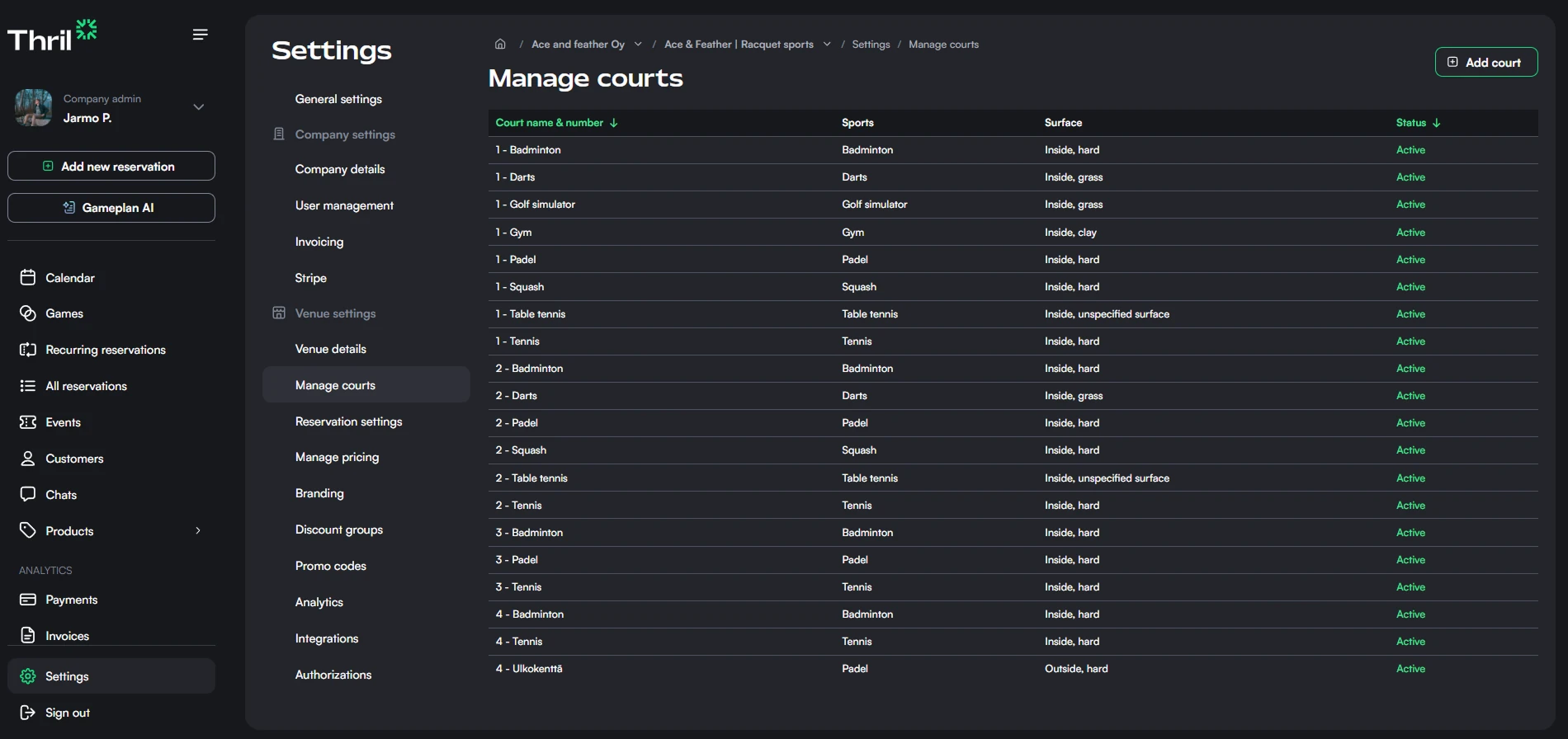
➕ Add a New Resource
To add a resource:
- Click the Add resource button at the top right.
- A new form will open where you can enter key resource details:
- Resource name and number (name is optional, number is required)
- Resource category (optional, groups resources visually in the consumer app, e.g. "Premium resources")
- Sport type (optional, leave empty for a general bookable space that is not tied to a single sport, such as a multi-use room or studio)
- Outdoor switch (on if the resource is outside)
- Surface (e.g., hard, grass, clay)
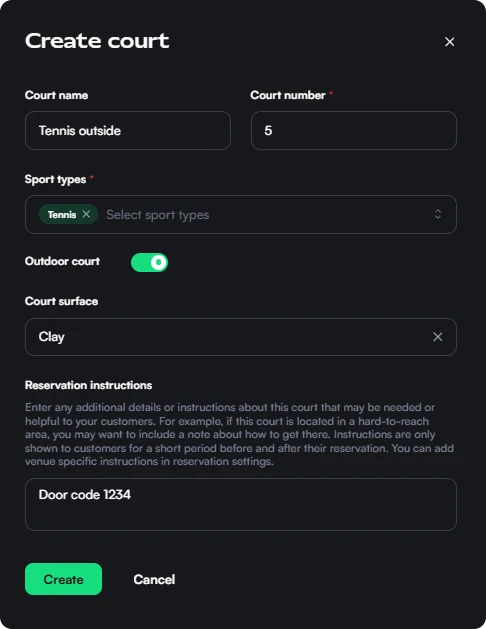
Optionally, you can also add Reservation instructions that are sent in the reservation confirmation email and shown in the Thril app once the reservation is confirmed. Instructions remain visible until 24 hours after the reservation ends, making them useful for door codes, access directions, parking information, or house rules.
💶 Tax and benefit settings (per resource)
On each resource you can override defaults that affect how reservations are priced and paid:
- Reservation tax percentage: optional custom VAT rate for reservations on this resource; leave empty to use the venue default.
- Employee benefit eligibility (venues in Finland, Sweden, Estonia and Latvia): choose Use venue setting, Allow, or Disallow for whether reservations on this resource may be paid with an employee benefit method, such as Epassi or Stebby.
👥 Per-participant pricing (per resource)
Normally the price of a resource is the price of the whole booking. On something like a darts board, every player pays the same base price instead. Switch on Price is per participant under Pricing & taxes. The pricing rules of the resource then set the price one player pays. Thril does not split it.
On such a resource:
- Every player on a reservation is a payer at that price, less their own discount. The reservation total is what the players who accepted pay together.
- There is no shared payment. When you add a reservation from the portal, the Players table has one row per payer, each with its own price, and Calculated total under it adds the rows up. You can change the price of a single row by hand.
- Every player you add is a payer. A non-paying participant is not possible.
- In the reservation details, the Pricing row reads Per participant, X each. Add participant adds one more payer, and the table shows how many spots are left. The number of spots depends on the sport.
- A player can leave until the cancellation deadline, and a paid share is refunded. After the deadline only you can remove a player. You can remove a player from the portal at any time.
- When the reservation has ended, each player who still owes gets one push notification that asks them to pay their share. They can pay in the app for a short while after the game. After that you collect the payment yourself.
- If you book the resource for a customer at a custom price, that price is only their own share. Players who join later pay the price of the resource.
Open reservations on such a resource work the same way. Every player pays the price of the resource, so the total grows with the number of players. See Open reservations.
A recurring reservation cannot mix resources priced per participant with resources priced per booking. Pick resources with the same pricing, or create separate series. The pricing rules form warns you when your selection mixes the two.
🔒 Booking controls (per resource)
You can configure booking behaviour independently for each resource:
- Allow reservation cancellation: controls whether customers can cancel their own confirmed reservations in the Thril app for this resource. When disabled, customers cannot cancel confirmed bookings (they can still withdraw before confirmation on open reservations).
- Reservation cancellation deadline: how many hours before the start time customers may still cancel on this resource. Leave empty to fall back to your venue-wide cancellation deadline from reservation settings. When set, this value replaces the venue default for this resource only.
- Allow marking reservations for sale: controls whether customers can put their reservation up for sale so another player can take the slot. When disabled, the for-sale flow is not offered for this resource.
- Allow consumer booking: controls whether customers can book this resource in the Thril app. When disabled, the resource is hidden from customer booking and open reservation creation, but remains available for staff-managed bookings.
- Minimum advance booking time: minimum lead time required before customers can book on this resource. For example,
24:00means customers must book at least 24 hours before the slot starts. Set to00:00or leave empty to allow bookings until the start time.
Once you're ready, hit Create to add your resource to the system.
✏️ Edit or Deactivate a Resource
Need to update an existing resource?
- From the Manage resources list, click on any resource to open its settings.
- Make your edits: change or clear the sport type, adjust the surface, update instructions, tax or benefit overrides, or rename it.
- Use the Active/Inactive toggle to control availability. Deactivating a resource hides it from public booking but keeps your data intact.
Don't forget to click Save changes when you're done.
🧭 Resource sport ordering
Open Settings → Manage resources and select the Resource sport ordering tab.
- Turn Use automatic ordering on to let Thril order sport types for you, or off to arrange them yourself.
- Drag and drop rows to set the order customers see (including Other resources if you have resources without a sport type).
- Click Save sport type order to apply.
🏷️ Resource category ordering
Open Settings → Manage resources and select the Resource category ordering tab.
Here you can control the order in which resource categories appear on the booking calendar for customers.
- Drag and drop categories to set your preferred order.
- Each category has a Use for ordering checkbox. When checked, the category actively affects how resources are sorted on the booking calendar. When unchecked, it becomes display-only and no longer affects sort order; those resources fall back to their sport group order and resource number.
- Click Save category order to apply your changes.
Resources with a sport type always stay within their sport group. Category order applies within that group. Resources without a sport type follow the category order directly.
🗂️ Resource pools
Resources in a pool are interchangeable. A customer booking from a pool picks only a time, and Thril gives them a free resource from the pool. Forty identical fatbikes show up as one choice instead of forty.
- Open Settings → Manage resources and select the Resource pools tab.
- Enter a New pool name, for example "Simulators", and click Create pool.
- On the Resources tab, edit each resource that belongs to the pool and choose the pool under Resource pool.
The app and the web then show the pool's name where they would show the resource's, and the customer never chooses between resources.
A pool with one resource
A pool also helps when you have only one resource of a kind. A venue with one golf simulator would otherwise show customers a choice of "Simulator 1" with nothing else to pick. Put the simulator in a pool of its own, and customers see the pool's name and go straight to booking.
📌 Tips for Optimal Setup
- Be descriptive: If you name resources (e.g., "Padel 1 - Outdoor"), it helps customers orient themselves faster.
- Use reservation instructions for directions, lock codes, or house rules.
- Keep statuses up to date: Deactivate resources under renovation or temporarily closed to avoid booking conflicts.
- Sportless resources: Use an empty sport type only when the space is genuinely multi-purpose; it affects filters and ordering, so keep your Associated sport types in venue settings aligned with what you offer.
With your resources properly set up, you're all set to receive bookings, host events, and get players playing. For more setup guidance, check out our help docs on pricing, reservation settings, and integrations. 💡
Need help? Reach out to Thril support anytime, we're here to back your game.
Reservations and recurring reservations
Configure how and when customers can book at your venue, from enabling reservations to setting cancellation rules and per-user limits.
Service bookings
Offer bookable services such as private coaching, lessons, or equipment fitting, with their own employees, schedules, and pricing.