 Knowledge Base
Announcements
Publish in-app announcements to your venue's customers, target them by list or individual, and reach them instantly with a mobile push notification.
Announcements are how you tell your customers something they need to know, right where they already are: in the Thril app. A power outage, a holiday schedule, a new league sign-up, a court resurfacing closure. Unlike a marketing email, an announcement is treated as a service message, so it reaches the customers you target whether or not they have opted in to marketing. You can optionally pair it with a push notification to land it on their phone the moment it goes live.
This page covers what an announcement can do, who sees it and where, and how targeting and push notifications behave.
What an announcement contains
An announcement is short and focused:
- Title. The headline customers see first.
- Content. A rich-text body, so you can add links, formatting, and structure to longer notices.
- Active period. A start date and time, and an optional end. The start is now unless you change it. Leave the end empty and the announcement stays live until you end it or delete it.
- Venues. If your company has several venues, company admins and managers choose where it shows: one venue, all venues, or selected venues. See Announcements for several venues.
The content area gives you enough room to explain a change properly, but the title is what most customers read first, so keep it clear and specific.
The active period is interpreted in your venue's time zone. The start time also controls when a push notification is sent, so set it to the moment you actually want customers to hear about it.
Draft, publish, and the announcement lifecycle
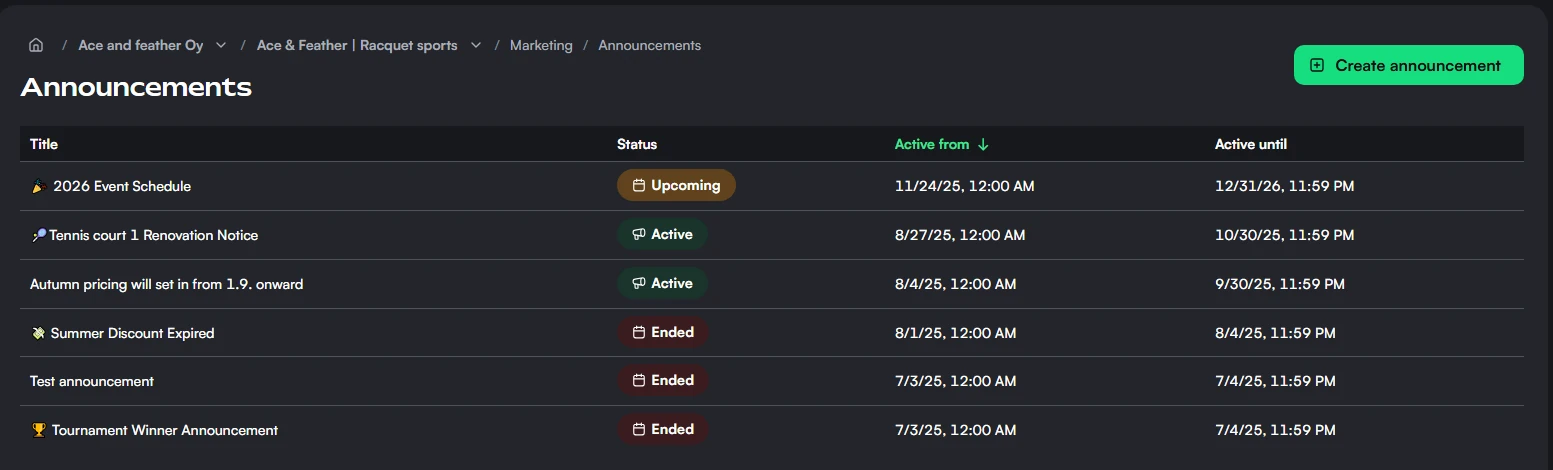
You can save as draft to keep working, or publish to make the announcement live according to its dates. The status you see on each announcement is worked out automatically from its dates and draft flag:
- Draft. Saved but not published. Only you and your team see it.
- Upcoming. Published, with a start date still in the future. It will appear to customers automatically when that time arrives.
- Active. Live now and visible to its audience.
- Ended. Its end has passed, or you ended it.
This means scheduling is built in: publish an announcement with a future start date and it simply waits, going live on its own. There is nothing to come back and switch on.
Reaching phones with push notifications
Beyond appearing in the app, an announcement can send a push notification to recipients' mobile devices. The push carries your venue name and the announcement title, so customers see who it is from and what it is about at a glance.
A few things are worth understanding about how the push behaves:
- It is sent once, at the announcement's start time. If you publish with a future start date, the push waits until then. It goes out within a minute of the start time.
- Ending or deleting an announcement before it starts cancels its push.
- It cannot be re-sent. Once an announcement's push has gone out, editing the announcement will not trigger a new one.
- Push targets Thril mobile app users who have device notifications enabled. Customers who have notifications turned off, or who use Thril on the web, do not receive a push, but the announcement still appears in their notification list the next time they open the app or web app.
Because the push only fires once at the start, editing a published announcement updates what customers see in the app but does not notify them again. If a change is important enough that customers must be alerted, a fresh announcement is the way to send a new push.
Choosing who sees it
By default an announcement is shown to everyone: anyone who opens the venue in Thril sees it, signed in or not, and its push goes to all of the venue's customers. Alternatively, choose selected customers and target precise audiences using any combination of customer lists and individual people. You can also exclude specific lists or individuals, and exclusions always win: an excluded customer will not see the announcement even if they fall inside the included audience. When you target selected customers, an estimated recipient count helps you confirm the reach before publishing.
Announcements are service communication, so they are sent regardless of a customer's marketing-consent status. This is the key difference from marketing emails, which only reach customers who have opted in. Use announcements for things people genuinely need to know, not promotions.
When you target a dynamic customer list, the push goes to the list's most recently successful membership. If the list is still syncing, it may not include every matching customer. In-app visibility is re-evaluated as customers open the app, so people added to a qualifying list afterwards still see the announcement.
Announcements for several venues
A company with several venues can post one announcement for all of them, or for a few, with no need to repeat it at each venue. Company admins and managers pick the venues when they create the announcement:
- This venue. The venue you are working in.
- All venues. Every venue of your company, including venues you add later.
- Selected venues. The venues you pick.
An announcement for more than one venue comes from your company: customers see your company's name and logo on it, at each of the venues. Its push goes to the customers of those venues, and a customer of several of them gets it only once.
Venue admins and clerks see their venues' company announcements in their list, but only a company admin or manager can edit, end, or delete them. They can still duplicate one to post a copy for their own venue.
Where customers see announcements
Announcements appear across the places customers naturally look, in both the Thril web app and the mobile app:
- On the venue page, a bubble with the venue's logo carries the oldest unread announcement, whichever tab the customer is on. Opening it shows the full announcement, and the next unread one after it.
- On the venue's profile, customers find the announcements they have already read, newest first.
- A push notification or an entry in the notification list opens that announcement directly. Whether an announcement has been read is tracked on the customer's own device, so there are no read receipts on your side.
Finding, previewing, and duplicating announcements
The announcements list has a search and filters:
- Search matches the title and the text of the announcement.
- Venue. The list shows the announcements of the venue you are working in, including the company's announcements that cover it. Company admins and managers can pick another venue, or clear the filter to see every announcement of the company.
- Active between. Shows the announcements that are live at some point between two dates.
Open an announcement and go to the Preview tab to see it as customers do, along with its push notification. Customers get the push in their own language.
Duplicate opens a new announcement with the same content, venues, and audience. A venue admin or clerk who copies a company announcement gets a copy for their own venue. The copy starts now and has no end date, and you can save it as a draft or publish it.
Editing, ending, deleting, and permissions
You can edit an announcement at any time. Editing a published announcement updates the displayed content but, as noted above, does not send another push, and the recipient targeting becomes read-only once a push has been sent.
There are two ways to take an announcement down:
- End now sets its end to the current moment. Customers stop seeing it right away, and it stays in your list as ended. On an announcement that has not started yet, ending it also cancels its push.
- Delete removes it from your list, from the venue page, and from customers' notification lists.
Venue admins and clerks manage the announcements of their own venue. An announcement for more than one venue needs a company admin or manager.
Monthly limit
Your plan includes a number of announcements per month. An announcement counts once, in the month you first publish it. Drafts do not count, and deleting a published announcement does not give its slot back.
A few practical notes
- Keep titles short and specific so they read well both in the app and in a push notification.
- Set the start time to when you want customers to actually hear about it, since that is when any push is sent.
- For a notice every customer must see, leave the audience as everyone and enable the push. For something relevant only to a segment, target a customer list instead.